
Problem:
Solution:
While InDesign CS4 doesn't feature a kerning table, it does support GREP styles, which can be used to apply custom kerning values to extended text settings. Because I haven't seen this documented in a truly helpful way (not that I've looked too hard) and some peeps have asked about it, here's a quick writeup of a possible procedure. Maybe if some of you have corrections or suggestions how to do it better, we can put together a killer workflow. (Scuse the atypically looong post… I figured Typophile was still the best place to put this.)
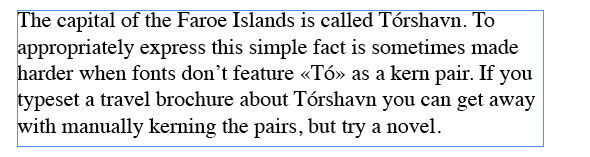
So in the text above, note the absence of a kern pair for «Tó» while «To» looks fine.
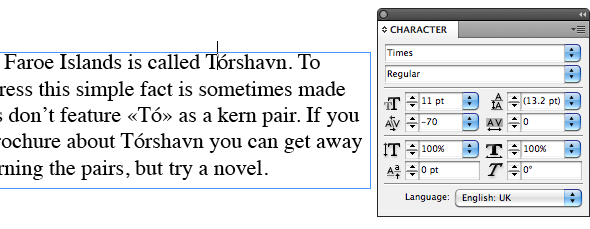
Step 1: Kern the pair manually, once.
.
.
Step 2: Define character style for kern pair.
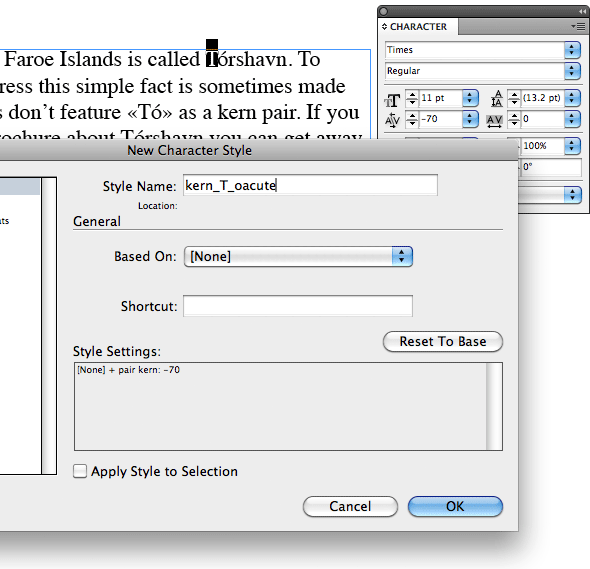
It seems that this has to be done in a roundabout way, since custom kerning values cannot be entered in the Character Style dialog.
It's interesting to note that while InDesign only lets you insert a kerning value when the cursor is between the 2 glyphs in question, it seems that the kerning value is treated as a property assigned to the first glyph in the pair. Thus, by selecting the first one of these 2 glyphs and then defining a «New Character Style» you will be able to make a character style that contains this kerning value. (You want to pay attention that it doesn't contain anything else.) I'd name it something telling, like kern_T_oacute in this case.
.
.
Step 3: Apply this Character Style to all occurrences of the pair in question, via GREP.
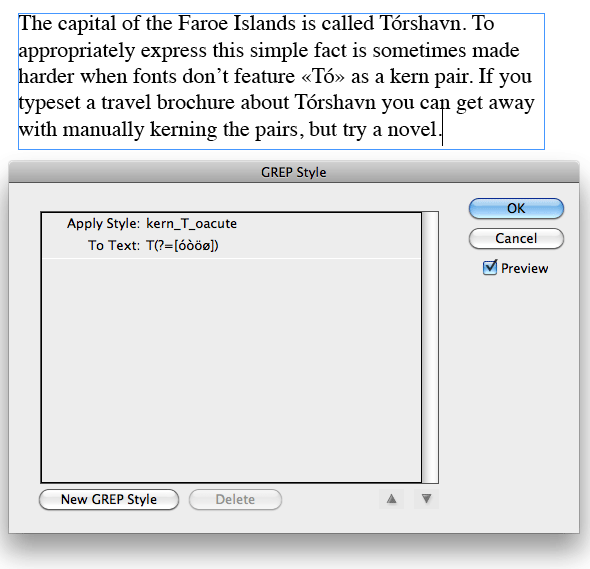
Make sure your text cursor is in one paragraph in question, then select «GREP Styles» from the Paragraph (not Paragraph Styles) palette flyout. Hit «NEW GREP Style…» and specify to assign the kern_T_oacute character style in case this condition is met:
T(?=ó)
The important thing is to only assign the character style to the "T" (as the kerning value is treated as a property of the first glyph in the pair), but only if it is followed by "ó" – this condition is what the (?=ó) specifies as a Positive Lookahead (cf. Adobe Guideline on Metacharacters). If you want to include other possibilities too (like odieresis), you can specify a class of possible second glyphs in brackets, like in the screenshot below.
When you hit Preview this baby should now automagically apply to all «Tó» pairs in the paragraph:
.
.
Step 4: Redefine Paragraph Style to include GREP style.
Your Paragraph Style will now have a "+" added because the GREP style was added. Select «Redefine Style» to add the GREP style to the Paragraph Style definition. Now the custom kern pair should automatically be applied in all paragraphs based on this paragraph style. (Note that you'll have to do this for all paragraph styles you need the kern pair in.)
Comments, suggestions, please shoot. I will add that in my case I actually solved it differently (via GREP Search&Replace) but found out later that this way would have been much more elegant.


