Typophile

Making the letter "O" even in width all the way around.

Emma Ford

Hello All,

I am new to typography and I am trying to create a font set with Fontlab. But I am having trouble making the capital letter “O” evenly wide in thickness all the way around.

For example, if I draw the black circle/oval in guidelines of (0,0) to (400,1000) and the white circle/oval in guidelines (100,100) to (300,900) I get an oval shaped “O”. Then the mid-points of “O” i.e. the vertical mid-point measurement from (200,0) to (200,100) and (200,900) to (200,1000) is 100. Similarly the horizontal mid-point measurement from (0,500) to (100,500) and (300,500) to (400,500) is 100. So the width of the character line at these points is 100 but the width of the character line at other parts is not 100.

Does anyone know how to make the “O” even all the way around at 100 units thickness.

Thanks.

Could you provide a picture? I do not really understand...

(Beside the fact that you don’t really want to make the stroke weight all equal in an O, not even in geometric typefaces – it just would look wrong.)

Make your outer and inner contour just as you’ve described. Make a circle 100 x 100 units. Move the circle to anywhere along the inner contour between the top or bottom and one of the sides. Adjust the curve of the outer contour until it touches the edge of the circle. Move the circle further along the curve and adjust the outer contour as needed. When one quadrant looks okay, note the lengths of the control nodes of the outer contour in the adjusted section. Use the same values for the other three sections. In this method, the inner contour controls the overall shape. If you prefer the outer contour, you would adjust the inner contour instead. Note, however, that this will result in corners at the top and bottom of the inside of the O, which you probably don’t want.

Note also that this is not usually the way O’s are drawn in real fonts. There are all sorts of optical illusions to take into account that have nothing to do with literal geometry, but with perceived geometry.

Just use the circle drawing tool in FontLab—drag the mouse with the shift key down. That will get you very close to a geometrical circle. Strictly speaking it is not possible to draw a real circle with bezier curves, but you won’t be able to see the difference.

An O made with two circles generally doesn’t look right, as Mark said. Only Avant Garde has that, I think, though I may be wrong.

I think Emma is trying to draw an O that looks like a tall, narrow ellipse. Assuming I followed her description correctly.

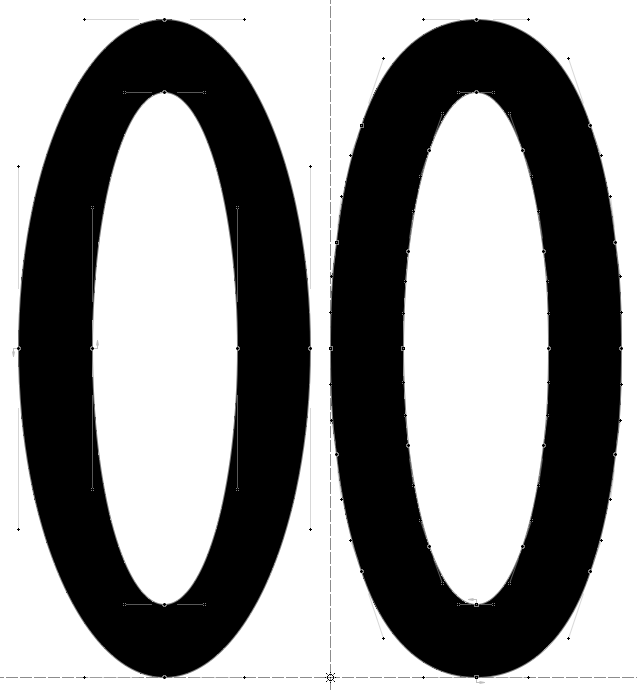
By the way, a method that may work better is to draw your inner ellipse first. Add at two nodes between the top, bottom, and side nodes, all the way around. Then, do Contour > Paths > Make Parallel Path... with a setting of 100 units. (Depending on the direction of the path, you may need to change it from left to right or right to left. Also, the path directions will need to be corrected after the procedure, since they will end up going the same direction, which you don’t want.) If you don’t add the extra nodes, the result will be identical to your initial example. The extra nodes force the distance to be the same all the way around (or at least closer to that ideal).

Here’s how it looks:

The one on the left is your original O, the one on the right was constructed starting from the inner contour with extra nodes added and the Make Parallel Path command.

Sorry, I didn’t read the original post carefully.

To expand on Mark’s point about visual vs geometrical: generally horizontals look thicker than verticals of the same physical width, so that when the top and bottom of an oval are the same as the sides they look thicker.

You can see this effect most strikingly by playing with the widths of the strokes in a ’plus sign’: for the lines to look the same weight the vertical has to be thicker than the horizontal.

Captured from web.archive.org on 5 Jul 2008. view this capture